pilotopsai
The “Wall of Text” Problem
It’s 2026. We have AI models that can pass the Bar Exam, diagnose rare diseases, and write poetry in 14th-century French.
So why are we still copy-pasting bullet points into PowerPoint?
If you ask ChatGPT (even GPT-5) to “Design a Market Entry Strategy,” what do you get? You get a list.
- Bullet point 1.
- Bullet point 2.
- Bullet point 3.
This is the “Wall of Text” problem.
Real work doesn’t happen in bullet points. Real work happens in Artifacts.
- A Marketing Director needs a Visual Flyer, not a description of one.
- A Startup Founder needs a Pitch Deck, not an outline.
- A Data Analyst needs a Dashboard, not a CSV file.
For the last 6 months, I’ve been obsessed with a new concept called “Generative UI.” The idea is simple: The AI shouldn’t just talk about the work. It should render the work.
I’m going to show you how I used the Creator AI Ecosystem (specifically the Image Studio and Canvas Engine) to stop “chatting” and start “building.”
The Shift: From “Prompting” to “Selecting”
The biggest friction point in AI right now is Prompt Fatigue. You stare at a blinking cursor, wondering how to describe the specific lighting, aspect ratio, and CSS padding you want.
We decided to kill the “Blank Page.”
In the PilotOps Image Studio, we introduced a feature that seems small but changes everything: Content Categories.
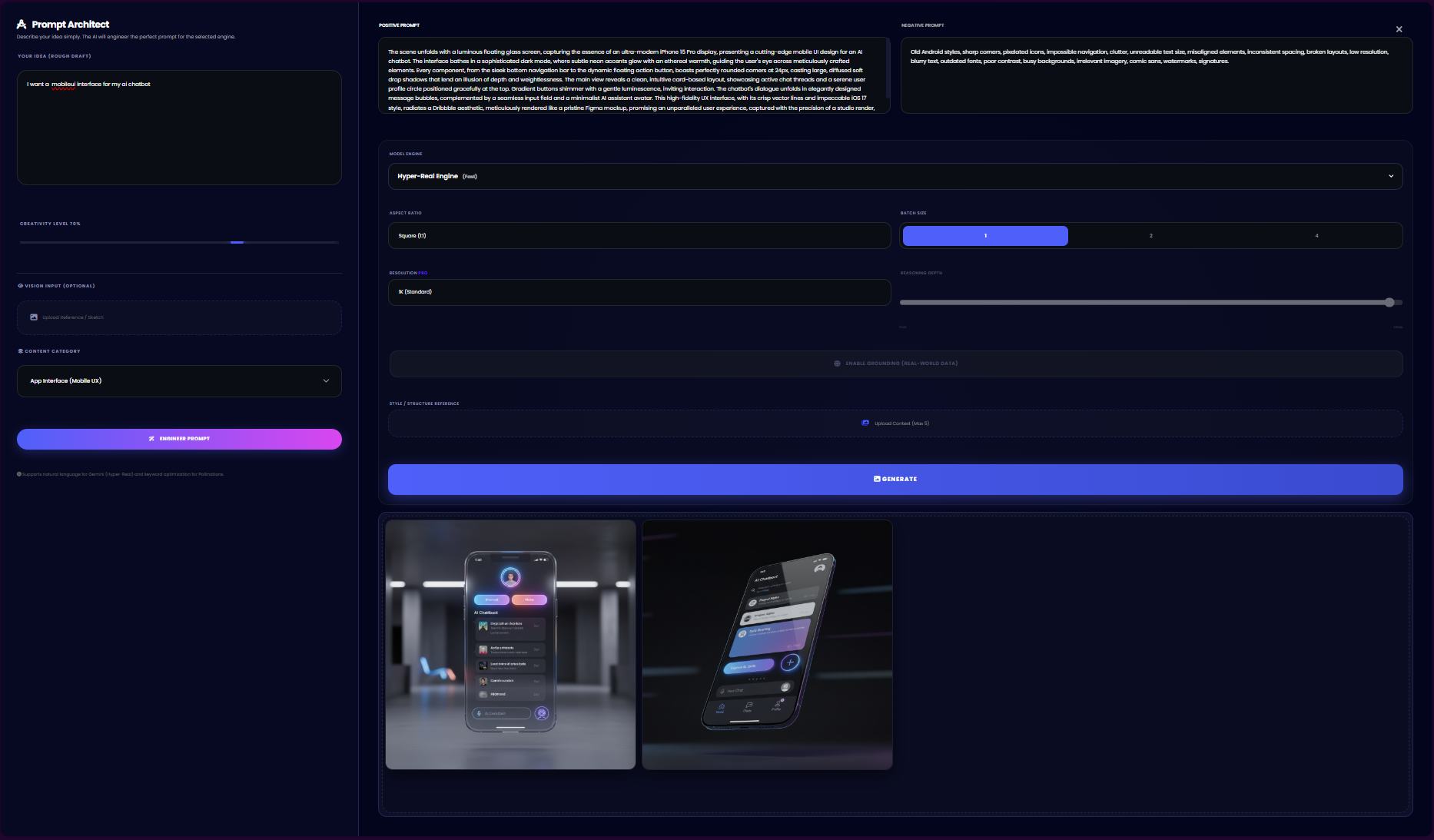
Instead of typing: “Generate a high-fidelity mobile app screen for a culinary event, use modern UI, 4k, minimalist…”
I just did this:
- Select Category: App Interface (Mobile UX)
- Type Idea: “Culinary Expo Flyer.”
- Click Generate.
The AI already holds the “Engineering DNA” for that category. It knows that a Mobile UX needs specific margins. It knows that a “LinkedIn Post” needs a 4:5 aspect ratio.
The Result:
(Placeholder: Insert Screenshot of the “Culinary Expo” Flyer/Mobile UI)
This isn’t just a pretty picture. It’s a Mockup. In previous years, I would have paid a designer $500 on Upwork and waited 3 days for this. Now, it’s part of the flow.
The Canvas Engine: Turning Logic into Code
Images are great, but what about Business Logic?
This is where the Canvas Engine comes in. This is the feature that made me cancel my PowerPoint subscription.
The Canvas Engine is a Generative UI Processor. It takes text input and renders high-fidelity HTML/CSS Artifacts.
The Test Case:
I needed to visualize a “Market Entry Strategy” for an AI Startup.
In ChatGPT, I would get 5 paragraphs of text.
In Creator AI, I asked: “Create a dark-mode dashboard for AI Market Entry tracking competitors and growth metrics.”
The AI didn’t write a paragraph. It went into Tier 3 (Reasoning Mode), planned the layout, and then wrote the code.
The Result:
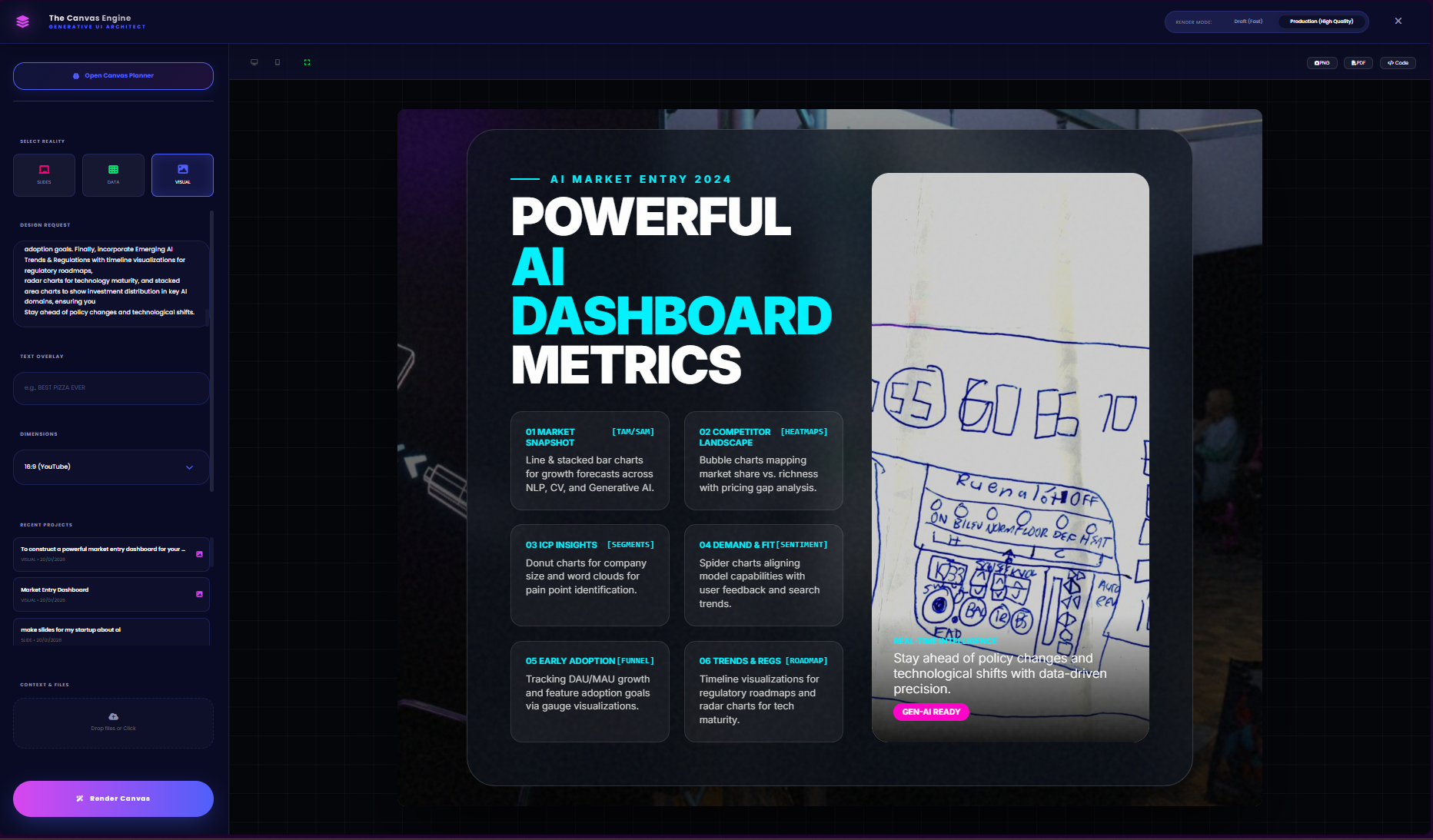
Look at what is happening in that image
- Bento Grid Layout: The AI understood that complex data is best consumed in a “Bento” box style.
- Data Visualization: It didn’t just list numbers; it created placeholders for charts and “Status Pills” (e.g., Early Adopters: Trending Up).
- Aesthetic Intelligence: It applied a “Glassmorphism” effect with dark purples and teals to match the modern SaaS aesthetic.
This is an Artifact. I can screenshot this and put it in a board meeting slide. I can export the HTML and give it to a developer as a spec.
The “Hybrid” Workflow (How to replicate this)
Most people use AI tools in silos. They use Midjourney for images and Claude for code.
The power of the PilotOps ecosystem is that these tools talk to each other.
Here is the “3-Step Artifact Workflow” I use daily:
Step 1: The Visual Asset (Image Studio)
- Go to Image Generator.
- Select Category: Product Mockup.
- Generate your “Hero Image” (e.g., your app screen or product bottle).
Step 2: The Structural Container (Canvas Engine)
- Go to Canvas.
- Ask for a “Landing Page Layout” or “Pitch Deck Slide.”
- Tell the Canvas: “Leave a placeholder for my Product Mockup.”
Step 3: The Assembly
- Drag your generated image into the Canvas layout.
- Export as PDF or HTML.
You have just gone from “Idea” to “Shippable Prototype” in under 5 minutes.
Why “Generative UI” is the End of “Templates”
For the last 10 years, we have relied on Templates (Canva, PowerPoint, Squarespace). Templates are rigid. If you want to move a box, you break the design.
Generative UI is fluid.
- Don’t like the “Bento Grid”? Tell the AI: “Switch to a Timeline view.” It re-writes the code instantly.
- Don’t like the colors? Tell the AI: “Make it look like a 1980s Cyberpunk movie.” It updates the CSS variables instantly.
We are entering a world where Software is Soft. You mold it like clay using natural language.
Conclusion: Be an Architect, Not a User
The difference between a “Junior” and a “Senior” in the AI age is simple:
- Juniors ask the AI questions.
- Seniors ask the AI to build Artifacts.
If you are still accepting “Walls of Text” from your AI, you are leaving 90% of the value on the table.
Stop chatting. Start generating.
[Link: Try the Canvas Engine Alpha]